The ServiceNow Configuration Management Database (CMDB), is the central source of truth for understanding how an organisation’s technology environment is put together. It stores the key attributes of every important component, known as Configuration Items or CIs, and it also records how those items relate to one another. These items can include servers, applications, network devices, cloud resources, and business services. By capturing these details and the connections between them, the CMDB gives IT teams a clear view of how the environment works and how different parts depend on each other.
Navigating ServiceNow
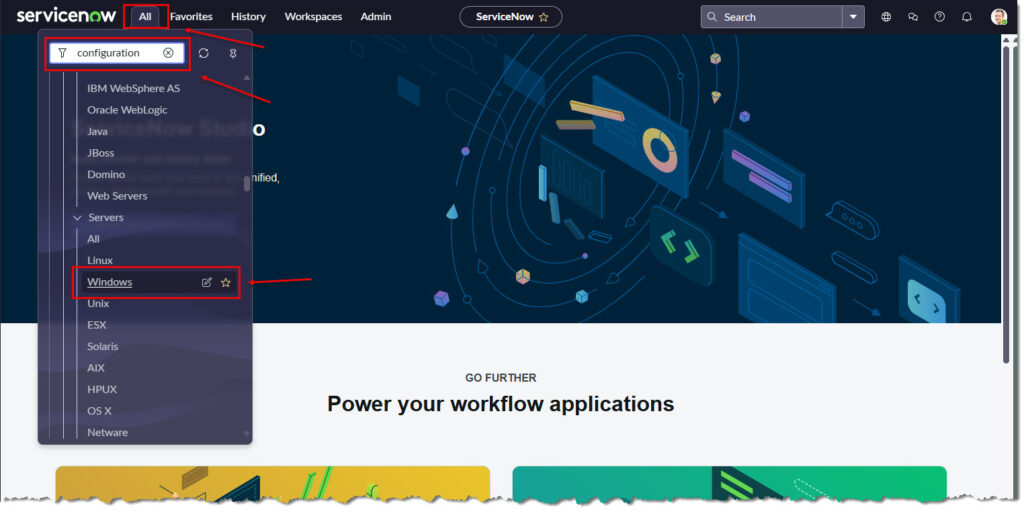
From the ServiceNow home page
- Select the [All] menu option.
- Type in “configuration” in the search bar and click [Enter].
- Scroll down and click [Windows].
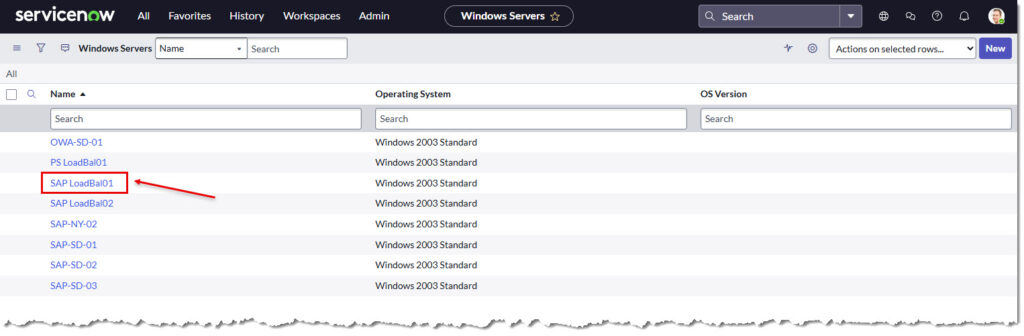
The “Windows Servers” page will appear.
This shows all the servers in the CMDB that are running all versions of the Windows operating system.
Click [SAP LoadBal01] to drill down into this server.
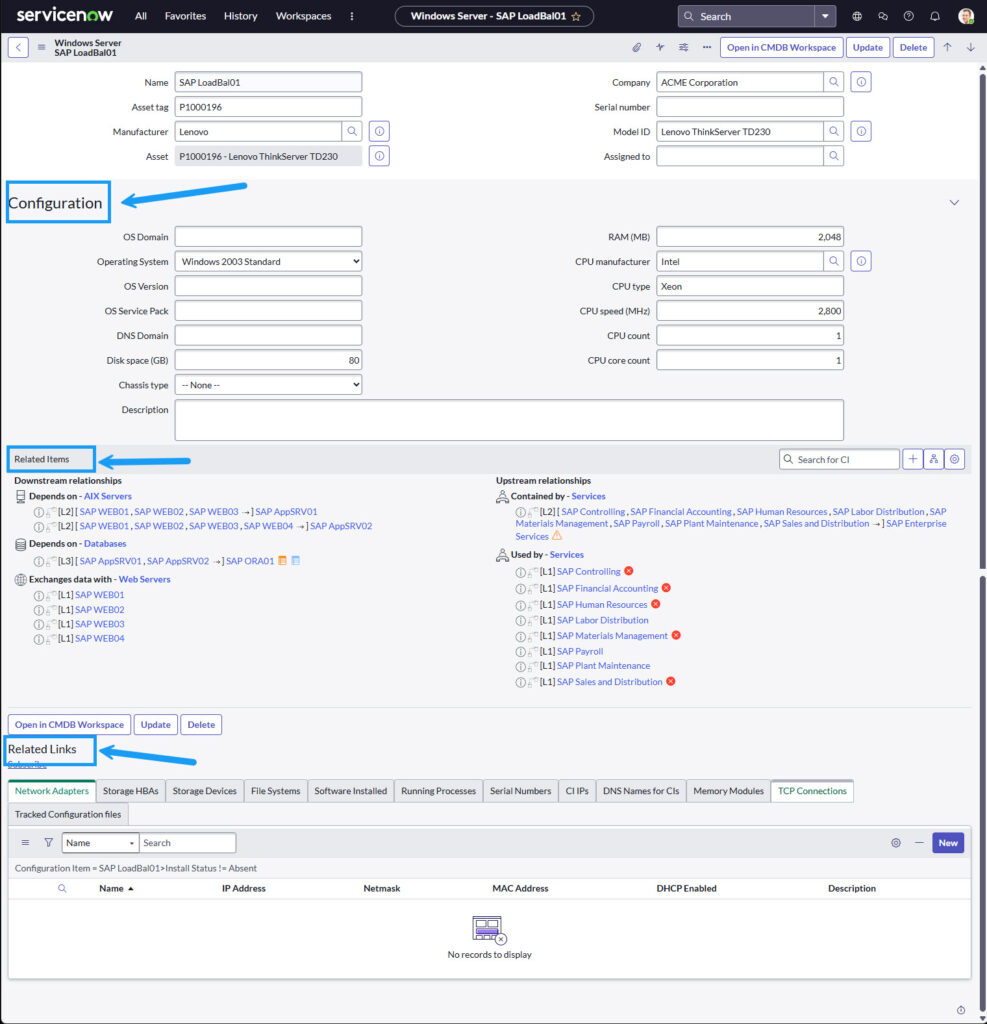
The “Windows Server – SAP LoadBal01” page will appear.
The page is broken into three sections
- Configuration – used for describing core details of the server itself.
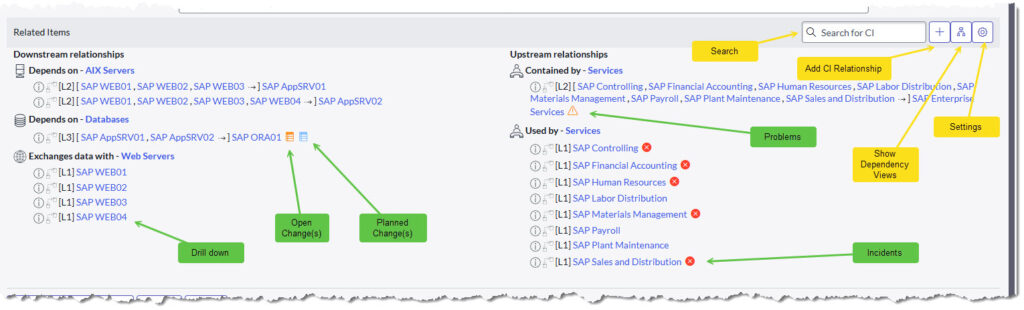
- Related Items – used for showing how the server connects to everything else in the environment. It lists what the server depends on, what depends on it, and what it is part of. Named Downstream and Upstream relationships.
- Related links – This section provides extra information about the server and allows users to jump to other elements connected to this CI.
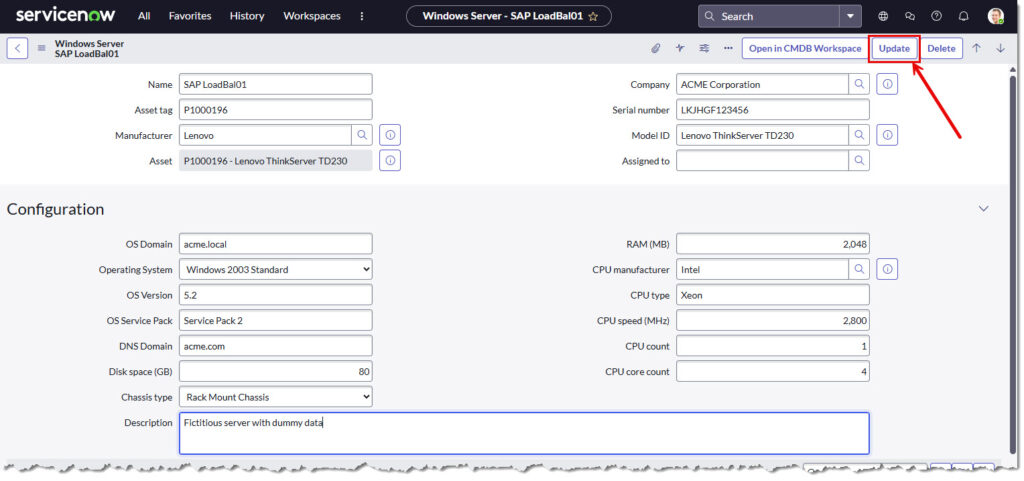
In the “Configuration” section, blank fields can be populated. Usually done with automation tools. Fill in blank fields and click [Update] to save.
In the “Related Items” section.
Click on any Blue text to drill down into those related CI’s
Other icons can also be clicked on. For example in this page:
- Open Changes
- Planned Changes
- Problems
- Incidents
Also in the Control Bar you can
- Search for CI’s
- Add a relationship
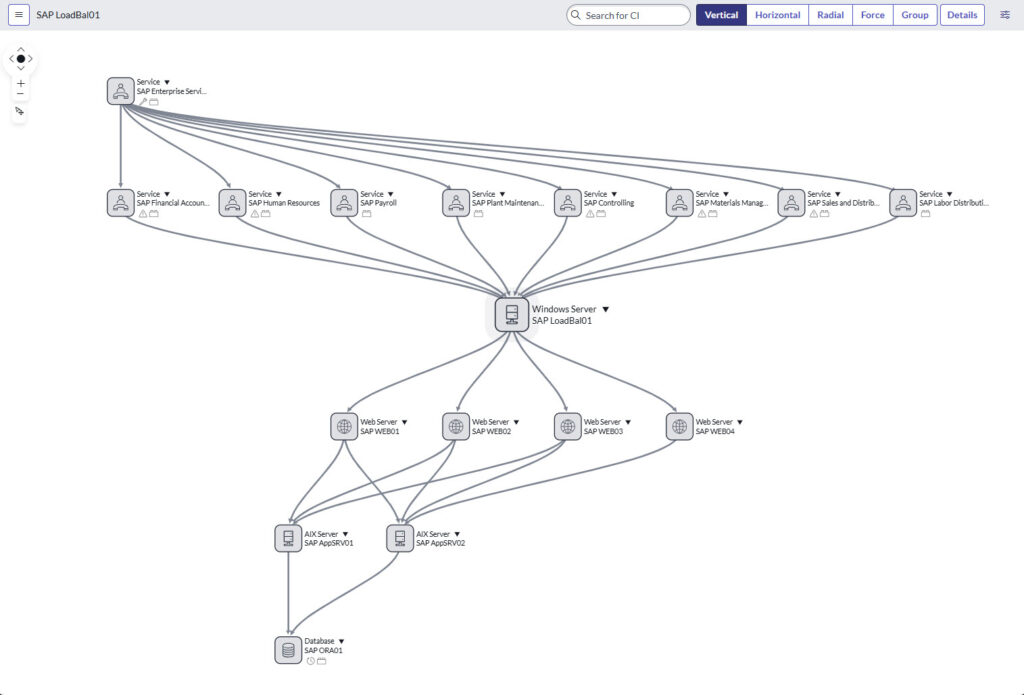
- Show Dependency Views
- Settings
Note. The “Show Dependency View” opens a new tab in your browser giving a visual view of the CI’s and the relationships. See example below. Select the [Vertical],[Horizontal],[Radial],[Force],[Group] for different views and [Details] to see any related changes.
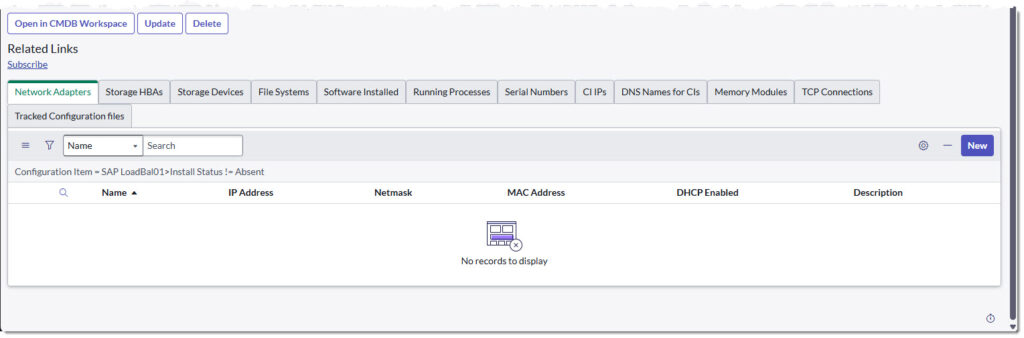
In the “Related Links” section there will be a series of tab views. These are detailed below:
- Network Adapters – Show the network interfaces the server uses to communicate on the network.
- Storage HBAs – List the host bus adapters that connect the server to external storage systems.
- Storage Devices – Display the disks or storage units the server can access.
- File Systems – Show the partitions and file system structures available on the server.
- Software Installed – List the applications and packages currently installed on the server.
- Running Processes – Display the active processes that are executing on the server.
- Serial Numbers – Record the hardware or system serial identifiers linked to the server.
- CI IPs – Show the IP addresses assigned to the server.
- DNS Names for CIs – List the DNS names that resolve to the server.
- Memory Modules – Display the physical RAM modules installed in the server.
- TCP Connections – Show the active network connections the server has established.
EOF